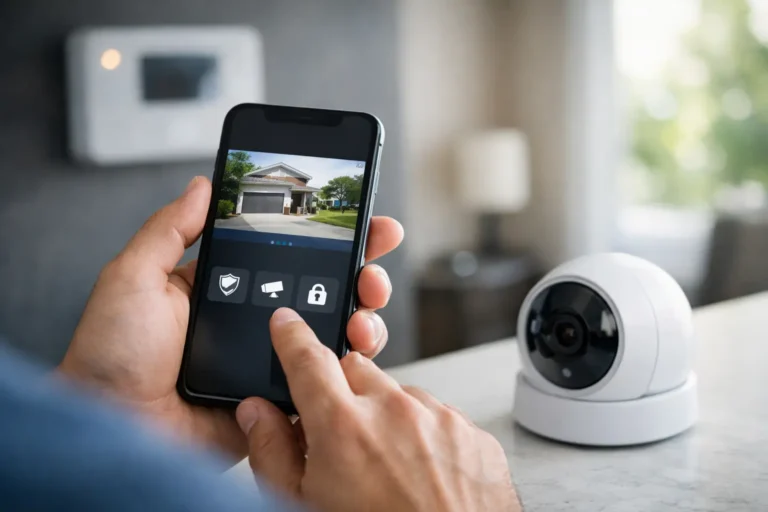
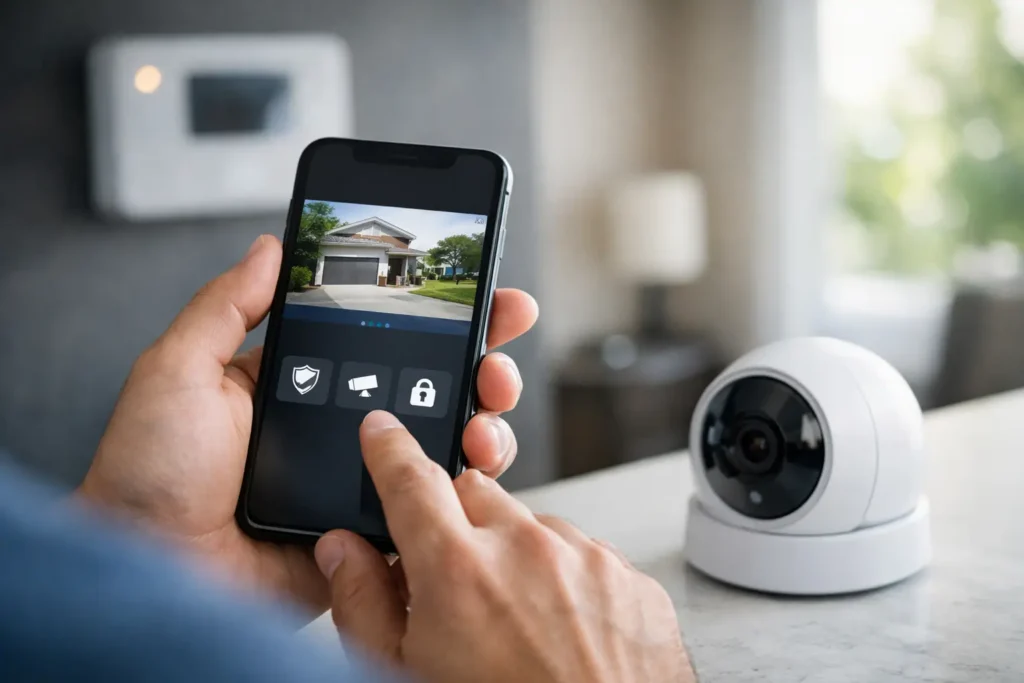
A security system is most useful when it fits into the moments you already have: locking up after a late shift, checking whether the kids arrived home, or confirming your business opened on time. Learning how to use Alarm.com app features puts those everyday checks and controls in one convenient place on your phone.
For Alarm Center Security customers, the app extends the protection of a professionally installed and monitored system beyond the keypad. Depending on the equipment and services included in your account, you may be able to arm your system, view cameras, manage smart locks, receive activity alerts, and control select automation devices. The exact options can vary, so think of the app as a personalized control center for your property rather than a one-size-fits-all dashboard.
Start With Your Alarm.com App Account
Before using the app, download Alarm.com from your phone’s app store and sign in with the username and password created for your account. If this is your first time logging in, use the account invitation or activation instructions provided during installation. Avoid sharing a primary account password with family members or employees. Individual user access is safer and makes it easier to see who disarmed the system or changed a setting.
After signing in, take a moment to review the home screen. Most accounts show the current security status first, such as Armed Stay, Armed Away, or Disarmed. Camera thumbnails, door lock controls, garage doors, lights, thermostats, and recent activity may also appear on the main screen when those devices are part of your system.
If a tile or feature is missing, it does not necessarily mean something is wrong. It may not be included in your current equipment package, or your user permissions may be limited. A primary account holder or your security provider can help clarify what is available.
How to Use Alarm.com App Security Controls
The security tile is the control most customers use every day. Tap it to view your system’s current status and choose an arming option. While labels can differ slightly by system, the common choices are Armed Stay and Armed Away.
Armed Stay is generally used when people remain inside. It protects selected perimeter points, such as exterior doors and windows, while allowing normal movement through areas covered by interior motion sensors. Armed Away is generally used when everyone has left, and it can activate both perimeter protection and interior sensors.
Before arming, check the app for any open or troubled points. If a back door is open or a sensor has a low battery, the system may alert you before it arms. Do not routinely bypass a door, window, or sensor simply to clear a message. A bypassed device may not provide protection until it is restored, so it is best used only when necessary and with a plan to correct the issue.
To disarm, tap the security control and confirm the action. If your system uses a code requirement or biometric login, follow the prompt. Disarm only when you are certain it is appropriate. For example, if you receive an unexpected alarm notification while away, review camera video if available and contact the monitoring center or local authorities according to the situation rather than immediately turning the system off.
Use the Activity Feed for Quick Answers
The activity feed provides a time-stamped record of events from connected devices. It can show when the system was armed or disarmed, when a protected door opened, when a lock was used, or when a garage door changed position.
For families, this can answer simple questions without a string of calls or texts: Did the front door open after school? Did someone remember to arm the house? For business owners, activity reporting can offer useful visibility into opening and closing routines. It supports accountability, but it is not a substitute for clear staff policies and proper keyholder management.
View Cameras and Respond to Video Alerts
If your Alarm.com account includes video service, select the camera tile to view live or recorded footage from supported cameras. Use clear camera names, such as “Front Door,” “Warehouse Entrance,” or “Back Patio,” so you can find the right view quickly during a busy moment.
Many camera systems can send notifications for motion, people, vehicles, or other selected events. These alerts are valuable, but overly broad settings can create too many notifications. A camera facing a busy street, for instance, may generate frequent vehicle alerts that make meaningful activity harder to spot.
Start with a practical notification plan. Set alerts for the areas that matter most, define activity zones where supported, and adjust sensitivity after a few days of real-world use. A front entry camera may need person alerts, while a business loading area may need after-hours motion alerts. The best setup depends on the location, lighting, traffic, and your normal schedule.
When you receive a video alert, open the clip or live view and assess what happened. If there is an immediate threat, call 911. If an alarm is in progress, follow your established response plan and be ready to verify your passcode if the monitoring center calls.
Control Locks, Lights, Thermostats, and Garage Doors
Smart devices connected to your security system can help make daily routines easier while supporting better security habits. From the app, you may be able to lock or unlock supported doors, close a compatible garage door, adjust lights, or change the thermostat.
These controls are especially useful when you are away from home. You might let a trusted guest in, confirm that a garage door was closed, or turn on an entry light before arriving after dark. Still, remote control should be used thoughtfully. Check the camera view before opening a door or garage door when possible, and grant access only to people you know and trust.
For business properties, smart locks and schedules can reduce the need to distribute physical keys. However, a business should also maintain clear procedures for staff departures, employee turnover, and emergency access. Technology helps with oversight, but consistent policies protect the operation.
Create Schedules and Scenes That Match Your Routine
Automation is most helpful when it removes small, repeatable tasks. Depending on your system, you may be able to create schedules or scenes that control several devices at once. A “Goodnight” scene, for example, may lock doors, turn off selected lights, adjust the thermostat, and arm the system in Stay mode.
Keep scenes simple at first. Build one for leaving, one for arriving, and one for closing your business if those actions fit your equipment. Test each scene while you are present so you know exactly which devices respond. A scene that automatically arms the system is convenient, but it must account for pets, employees, family members, and anyone who may still be inside.
Schedules also need occasional review. School hours change, employees come and go, and seasonal routines shift. Update automation rules when your household or business schedule changes rather than assuming an old setting still makes sense.
Manage Users Without Giving Up Control
Individual user access is one of the most practical app features for homes and businesses. The primary account holder can typically add users, assign appropriate permissions, and remove access when it is no longer needed. This is more secure than passing around one shared login or keypad code.
For a household, you may create access for a spouse, adult child, caregiver, or trusted house sitter. For a business, access may be appropriate for managers, opening staff, or maintenance personnel. Give each person only the permissions they need. A temporary guest may need a door code but not full access to cameras, automation settings, or account management.
Review users periodically, especially after an employee leaves, a tenant moves out, or a contractor finishes work. Removing unused access is a small step that can prevent a larger security concern later.
Fix Common App Issues Before They Become Frustrating
If the app will not update, begin with the basics: confirm your phone has internet service, update the app, and make sure you are signing in with the correct account. If cameras appear offline, check whether the property has power and internet service. A home network outage can affect remote video access even when the alarm system remains protected through its separate communications path.
Low-battery and sensor trouble messages deserve attention. Some can be resolved with a simple battery replacement, while others may require service. Do not remove sensors, reset equipment, or change panel programming unless you have been instructed to do so. Professionally installed systems work best when repairs and configuration changes are handled correctly.
If you are unsure what an alert means, contact your security provider for support. Alarm Center Security has served Louisiana families and businesses since 1985, and a local team can help you understand your equipment, update users, or plan an upgrade when your needs change.
Your app should make protection easier to manage, not leave you guessing. Use it regularly, keep access current, and adjust alerts around the routines that matter most. A few minutes spent setting it up thoughtfully can give you clearer awareness of what is happening at your property, whether you are across town or away for the weekend.